Task Cost and Budget
GlidePath tracks both planned (budgeted) and actual costs at the task level. These values roll up to the project dashboard and feed the earned value metrics that appear in the Project Summary widget.Feature Spec Reference
Module 2.6 — Task Fields (Budgeted Cost, Actual Cost)Cost Fields on a Task
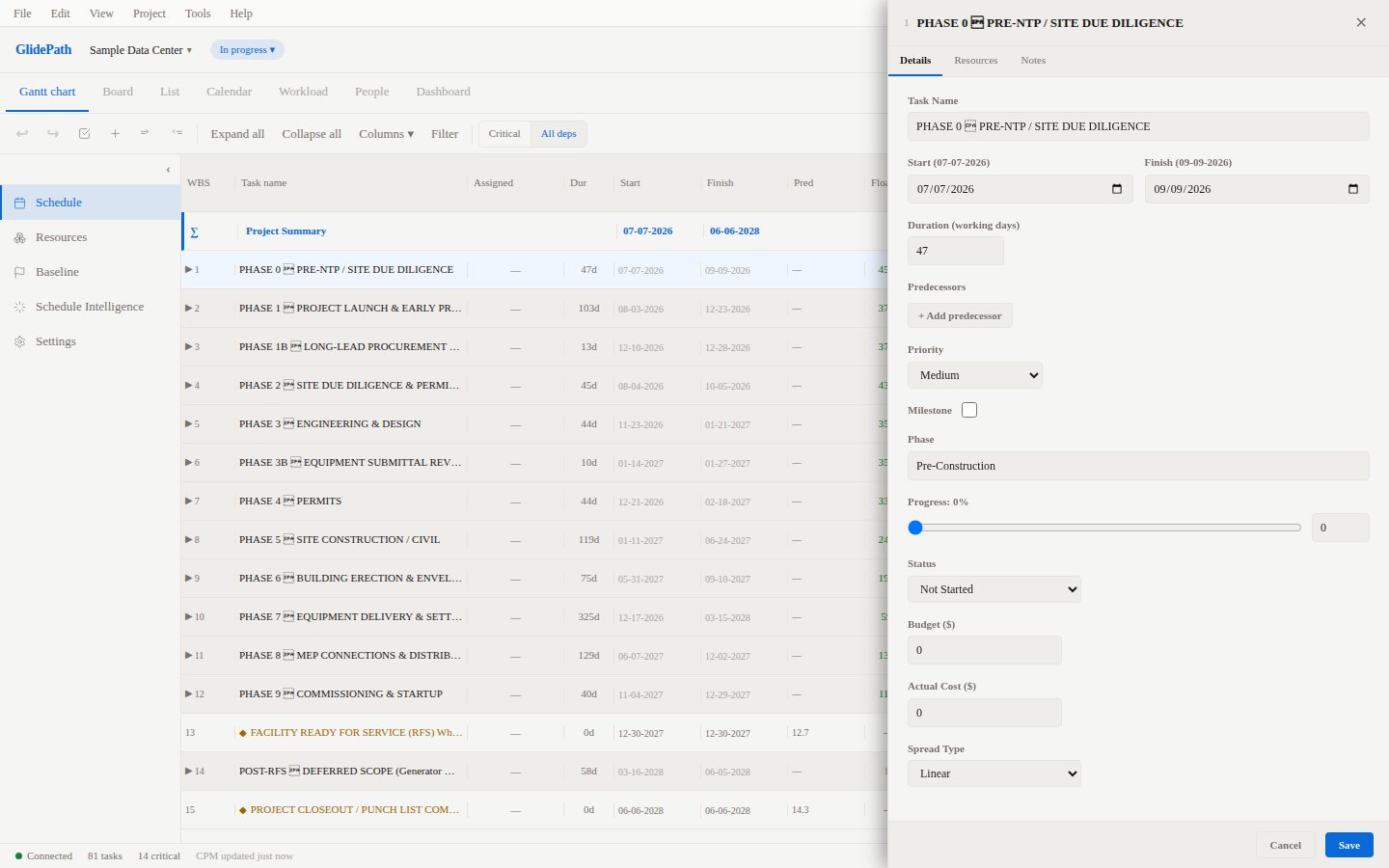
Access cost fields through the Task Detail Panel (double-click any task row):Entering Budget
- Double-click the task row to open the Task Detail Panel
- Scroll to the Budget ($) field
- Enter the planned cost in your project currency
- Click Save
Entering Actual Cost
- Open the Task Detail Panel for the task
- Find the Actual Cost ($) field
- Enter the cost incurred to date
- Click Save
Resource-Driven Costs
If you assign resources with cost rates to a task, GlidePath calculates cost automatically:Earned Value Metrics
GlidePath calculates two standard earned value metrics and displays them in the Dashboard’s Project Summary widget:Cost Performance Index (CPI)
- CPI > 1.0: Under budget (spending less than planned for work done)
- CPI = 1.0: On budget
- CPI < 1.0: Over budget (spending more than planned for work done)
Schedule Performance Index (SPI)
- SPI > 1.0: Ahead of schedule
- SPI = 1.0: On schedule
- SPI < 1.0: Behind schedule
Viewing Metrics
Earned value metrics appear in the Project Summary widget on the Dashboard. They update automatically when you save changes to task costs or progress percentages.Cost Variance
Cost Variance (CV) shows whether spending is aligned with work accomplished:Currency
All cost values are displayed in the project currency set in Project Settings. To change the currency:- Open Project Settings (Project menu)
- Find the Currency dropdown
- Select your currency (USD, EUR, GBP, CAD, AUD, etc.)
Screenshot