CSV/Excel Import with Template
The most straightforward way to import projects is to use the GlidePath Import Template and fill in your task data.Feature Spec Reference
Module 1.7 — Import from Excel/CSVDownloading the Template
Template Location
- Open Import dialog (File → Import or Import button)
- Select CSV/Excel format tab
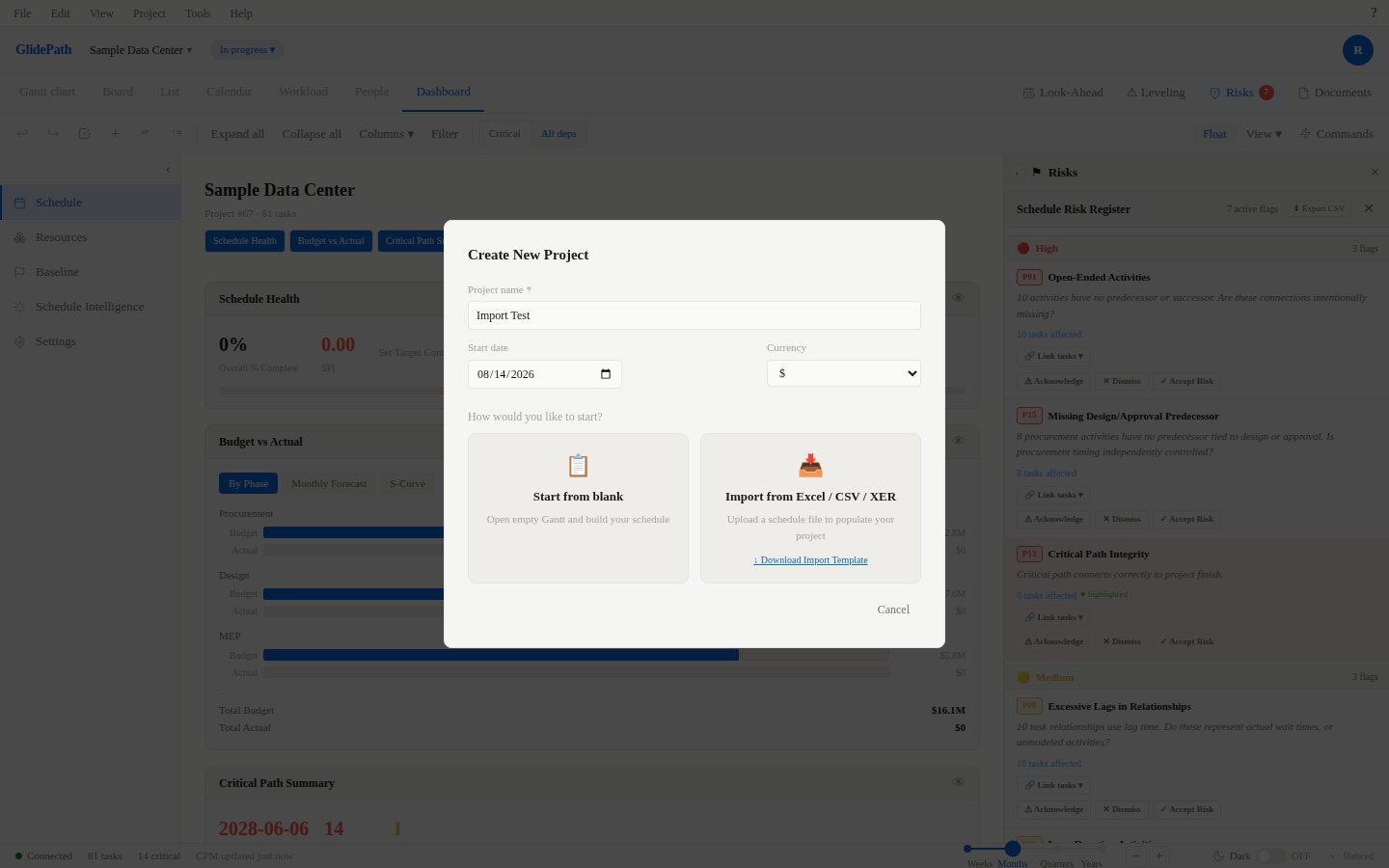
- Click “Download Template” button (visible in the dialog)
- File
glide-import-template.csvdownloads to your computer
What’s in the Template
The template (glide-import-template.csv) has columns for:
- WBS (optional — auto-generated if empty)
- Task Name (required)
- Duration (in working days)
- Start (MM/DD/YYYY or YYYY-MM-DD)
- Finish (MM/DD/YYYY or YYYY-MM-DD, optional — can be calculated from Start + Duration)
- Predecessors (WBS-based: “2.1FS”, “3.0FS+2d”)
- Resources (comma-separated names)
- Budget (dollar amount)
- Actual Cost (dollar amount)
- Notes (free text)
- Phase (free text category)
- Milestone (Y / N / Yes / No / True / False / 1 / 0)
- Priority (Low / Medium / High)
- Status (Not Started / In Progress / Complete / On Hold)
- Spread Type (Linear / Front-Loaded / Back-Loaded / Bell / Lot)
Filling in the Template
- Open the template in Excel or Google Sheets
- Add your tasks (one per row)
- Fill in required columns: Task Name, Duration
- Fill in optional columns as applicable
- Save as .xlsx or .csv
- Import using Import dialog
Example Data
Column Mapping
After uploading the file, GlidePath attempts to auto-map columns:- If your columns match template names exactly, mapping is automatic
- If not, you manually map each column using dropdowns
Manual Mapping
If auto-map fails:- In the Column Mapping step, select the correct GlidePath field for each source column
- Preview the first 5–10 rows
- Click OK to confirm mapping
Screenshot
Validation
GlidePath validates your data during import:- Required fields: Task Name, Duration (error if missing)
- Date format: Validates date format matches your locale
- Numeric fields: Duration must be a number
- WBS: Auto-generates if empty
Import Results
After importing, you see:- Import Results Dialog with task count, warnings, errors
- Example: “Successfully imported 45 tasks. 3 warnings: rows 12, 18, 25 have missing start dates.”
- Gantt Chart updates with new tasks