Welcome to GlidePath
GlidePath is a modern web-based project scheduling platform designed for construction, data center, and industrial projects. It combines the power of Critical Path Method (CPM) scheduling with a clean, intuitive interface for managing complex project timelines.What You Can Do with GlidePath
Schedule with Confidence- Create and manage Gantt charts with drag-and-drop task management
- Automatically calculate project timelines using Critical Path Method
- Define dependencies between tasks and visualize how changes ripple through your schedule
- Set constraints and milestones to control when tasks must occur
- Monitor task completion with progress percentages
- View look-ahead reports for upcoming work (2–4 weeks)
- Track actual vs. planned dates and identify delays early
- See critical path highlighting to focus on schedule-critical work
- Assign resources (labor, equipment, materials) to tasks
- Track budgeted and actual costs per task
- Calculate earned value metrics (SPI, CPI) for financial tracking
- Monitor resource utilization across your project
- Identify and track project risks in the Risk Register
- Assess probability and impact with a risk matrix
- Link mitigation tasks to risks
- Monitor risk status throughout the project
- Invite team members and control access (Viewer, Editor, Admin roles)
- Capture and share project baselines to track variance
- Attach documents and notes to tasks for transparency
- Email notifications keep the team informed of updates
Key Features at a Glance
Who This Documentation Is For
- Project Managers: Set up projects, manage timelines, track progress, and communicate with stakeholders
- Schedulers: Create detailed task networks, manage dependencies, and optimize schedules
- Resource Planners: Assign resources, resolve conflicts, and monitor utilization
- Team Members: View project status, track your assigned work, and stay informed
- Administrators: Manage users, configure project settings, and maintain project data
Before You Start
GlidePath works best when you have:- Project scope — Know what work needs to be done
- Rough timeline — Estimate how long the project will take
- Work breakdown — At least a basic list of major activities
- Team — Know who will be involved
Next Steps
Create Your First Project → Learn how to set up a new project in GlidePath with a step-by-step walkthrough of the Create Project dialog.Dashboard Overview
Below is what the GlidePath dashboard looks like when you first open a project: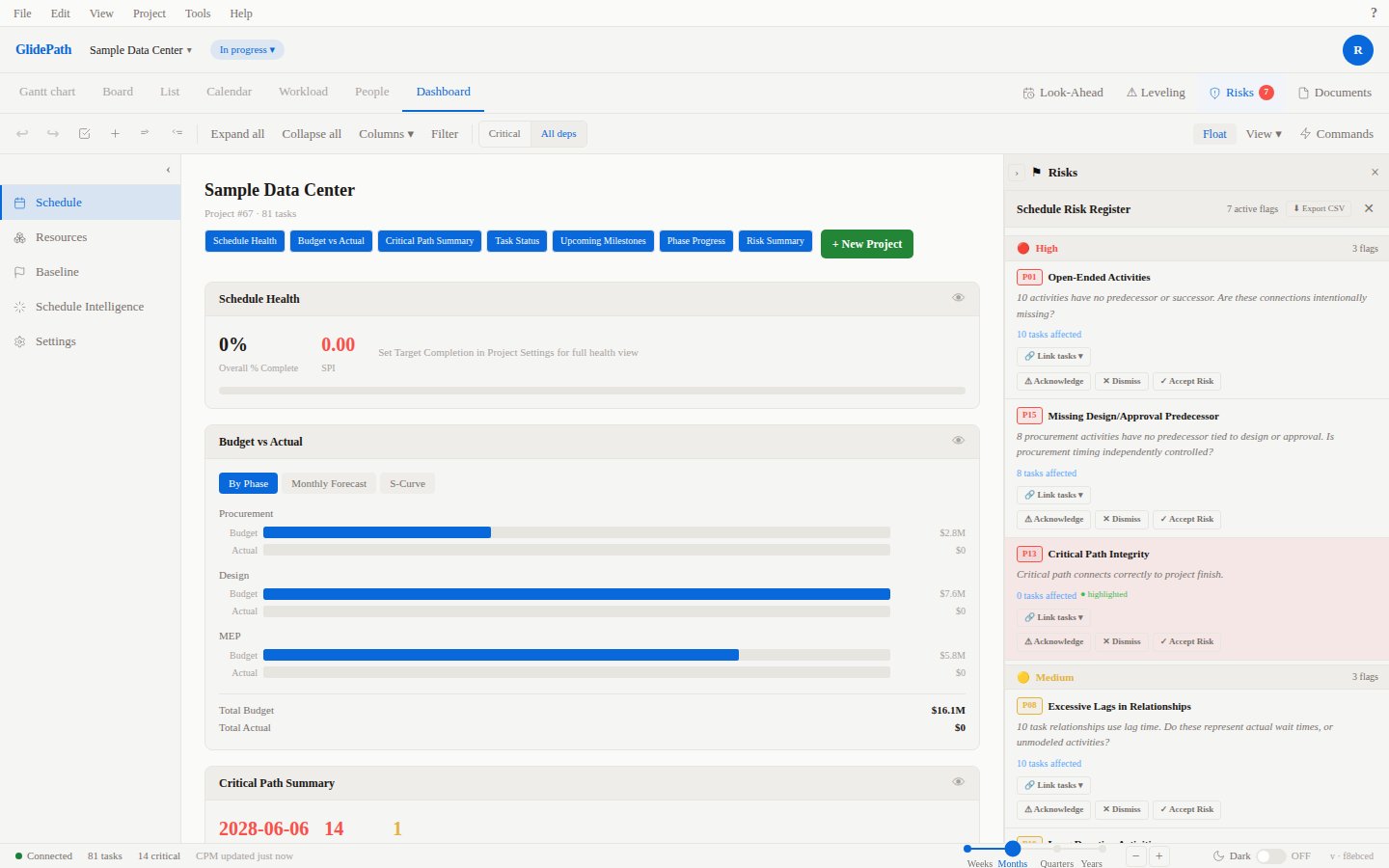
- Project Summary widget: Project name, total duration, budget, Schedule Performance Index (SPI), and Cost Performance Index (CPI)
- Task Status widget: Count of tasks by status (on track, at risk, behind schedule)
- Risk Summary widget: Count of identified risks by status
- Look-Ahead widget: Upcoming tasks for the next 2–4 weeks with potential delays or conflicts flagged
- Gantt Chart view button in the left sidebar for detailed schedule visualization
Key Concepts You’ll Encounter
Gantt ChartA timeline visualization of your project with tasks shown as horizontal bars. The position and length of each bar represent when the task starts and how long it takes. Dependencies appear as connecting lines, and the critical path (longest sequence of dependent tasks) is highlighted. Critical Path
The longest sequence of dependent tasks in your project. Tasks on the critical path have zero slack; any delay to them delays your entire project finish date. GlidePath highlights the critical path in red so you can focus on schedule-critical work first. Float (or Slack)
The amount of time a non-critical task can slip without delaying the project finish date. GlidePath color-codes tasks: red = on critical path (zero float), green = has available float. WBS (Work Breakdown Structure)
A hierarchical decomposition of your project into smaller, manageable work packages. GlidePath auto-assigns WBS numbers (1, 1.1, 1.1.1, etc.) and lets you control the hierarchy by indenting/outdenting tasks. Baseline
A snapshot of your project schedule at a point in time (typically project kickoff). Use baselines to track schedule variance—how current dates compare to the baseline.
Getting Help
- Browse the sections in the left sidebar to learn about specific features
- Use the keyboard shortcuts reference (Module 2.11) for quick tips
- Check the Troubleshooting & FAQ section for common issues
- Contact support at support@glidepathcpm.com
Ready to start? Head to Create Your First Project.