Project Settings
Manage project-level configuration including name, type, dates, calendar, and access.Feature Spec Reference
Module 1.6 — Project SettingsAccessing Project Settings
- From any view, click the Settings tab (gear icon) in left sidebar
- Or click project name in header → Settings
- Project Settings panel opens
Settings Available
Basic Information
- Project Name: Edit the project name (unique within your account)
- Project Type: Construction, Data Center, Industrial, Commercial, Other
- Start Date: Project start date (affects date calculations)
- Target Completion: Target finish date (used for SPI calculations)
- Description: Optional notes about the project (e.g., location, client name)
Calendar & Work Schedule
- Work Week: Check boxes for working days (Mon–Sun)
- Hours Per Day: Hours of work per day (default 8, range 1–24)
- Holidays & Non-Working Days: Add or upload calendar of holidays
- Project Calendar Name: Reference to the calendar being used
Financial
- Currency: USD, EUR, GBP, CAD, AUD, SGD, JPY
- Budget: Total project budget (sum of task budgeted costs)
- Project Code: Optional identifier for accounting/reporting (e.g., “CC-2026-001”)
Access & Sharing
- Project Status: Active, Archived, or On Hold
- Visibility: Private (only invited members) or Public (organization-wide)
Editing Settings
- Click any setting field to edit
- For dropdowns, select from list
- For date fields, use date picker
- For text fields, type new value
- Click Save to persist changes
Screenshot
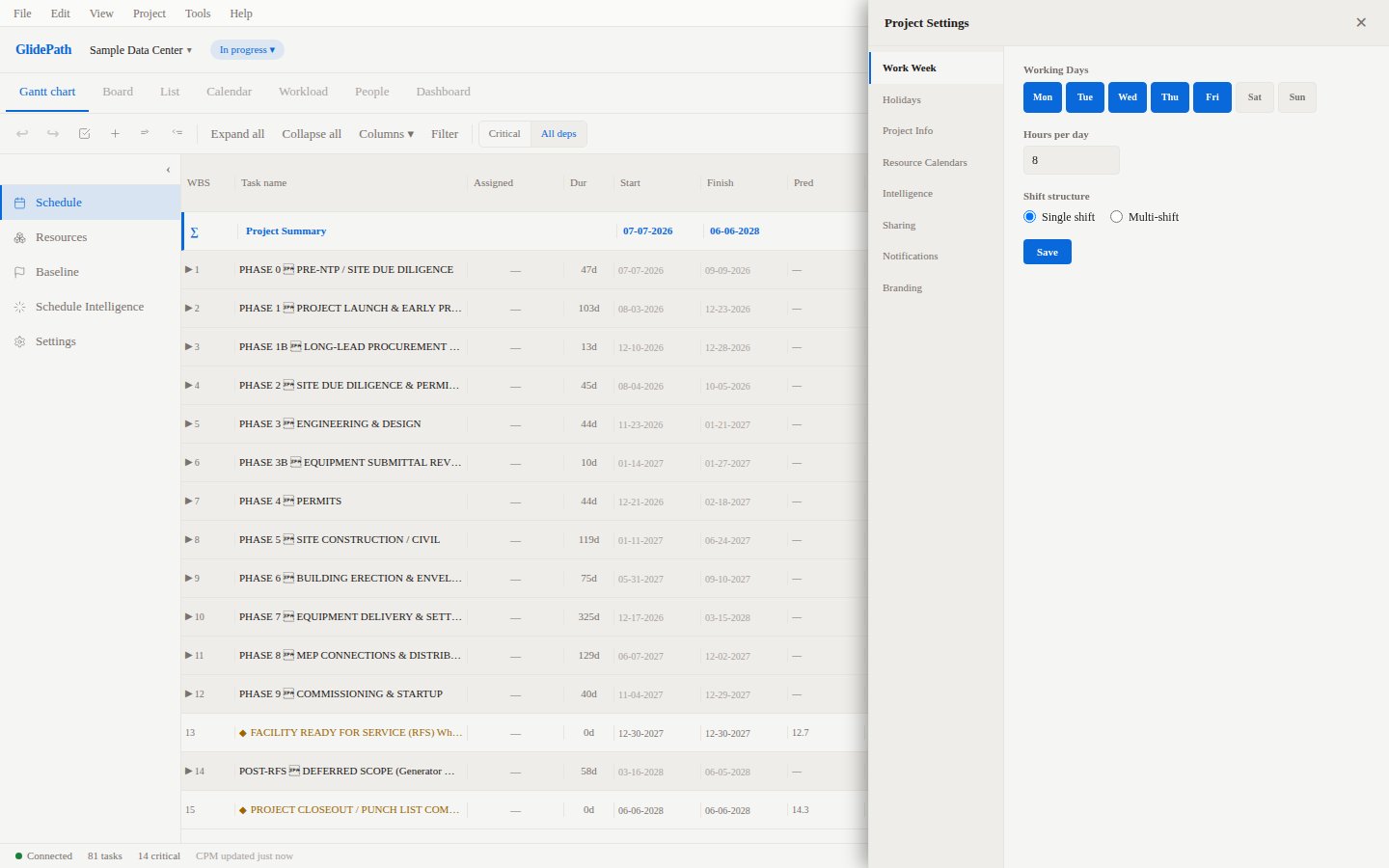
Common Workflows
Change Project Timeline
- Open Project Settings
- Update Start Date or Target Completion
- CPM recalculates based on new dates
- Gantt chart updates immediately
Add Company Holidays
- Open Project Settings → Calendar
- Click Add Holiday
- Select date(s) for non-working days
- Tasks automatically skip these dates in duration calculations
Archive Completed Project
- Open Project Settings
- Change Project Status to Archived
- Project moves out of active list
- Can still be viewed and reported on