Calendars and Working Days
GlidePath uses a project calendar to determine which days count as working days. The CPM engine uses this calendar when calculating all task durations and dates — a 5-day task on a Mon-Fri calendar schedules differently than on a 7-day calendar.Feature Spec Reference
Module 5 — Project CalendarAccessing Calendar Settings
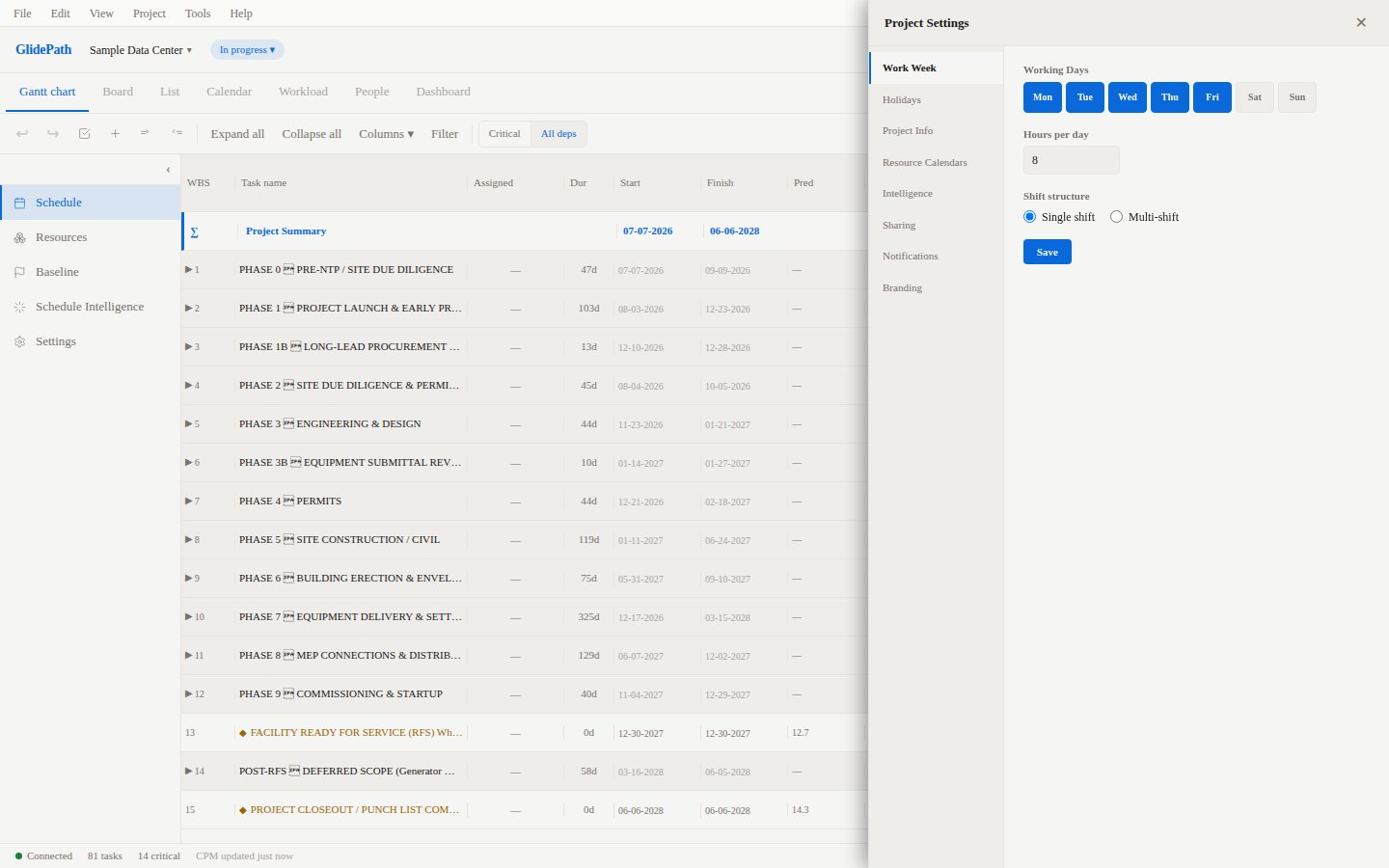
- Open the Project menu in the top toolbar
- Select Project Settings
- Click the Work Week tab
Work Week Configuration
Setting Working Days
Use the checkboxes to specify which days of the week are working days:
Uncheck any day to mark it as non-working. GlidePath will automatically skip those days when calculating task durations and scheduling start/finish dates.
Example: A 5-day task starting Monday on a Mon-Fri calendar finishes Friday. The same task starting Thursday finishes the following Wednesday (skipping Saturday and Sunday).
Hours Per Day
Set the number of hours in a working day (default: 8). This affects:- Duration display when showing hours instead of days
- Resource work calculations
- Lag values entered in hours
Holidays and Non-Working Days
Adding a Holiday
- In the Holidays section of the Work Week tab, click + Add Holiday
- Enter a name (e.g., “Labor Day”)
- Select the date from the calendar picker
- Click Save
Removing a Holiday
Click the Delete (trash) icon next to any holiday in the list.Recurring Holidays
At this time, holidays must be entered individually for each year. If your project spans multiple years, add each holiday occurrence separately.How Calendar Changes Affect the Schedule
When you change the work week or add/remove holidays, GlidePath immediately recalculates the entire schedule:- Tasks that fell on newly non-working days shift to the next working day
- Total project duration may increase or decrease
- The critical path is recalculated
Resource Calendars
Individual resources can have their own calendars (vacation days, different shifts). When a resource is assigned to a task, the task’s effective calendar is the intersection of the project calendar and the resource’s calendar. See Resources and Assignment for how to set resource-specific calendars.Calendar Impact on CPM
The CPM engine respects the project calendar during both the forward pass and backward pass:- Duration: Task duration is measured in working days, skipping non-working days
- Lag values: Lag values entered in days are also measured in working days
- Float: Float values shown in the Float column represent working days of scheduling flexibility
Screenshot